Understanding the WordPress Dashboard
Once you're logged into your website, you’ll land on the WordPress Dashboard.
This is your website’s “control center” — where pages, blog posts, images, forms, and settings can be managed.
If this is your first time in WordPress, don’t worry. We’re breaking down what you need to know (and what to safely avoid).
Dashboard Overview
When you first log in, you’ll see a screen similar to this:
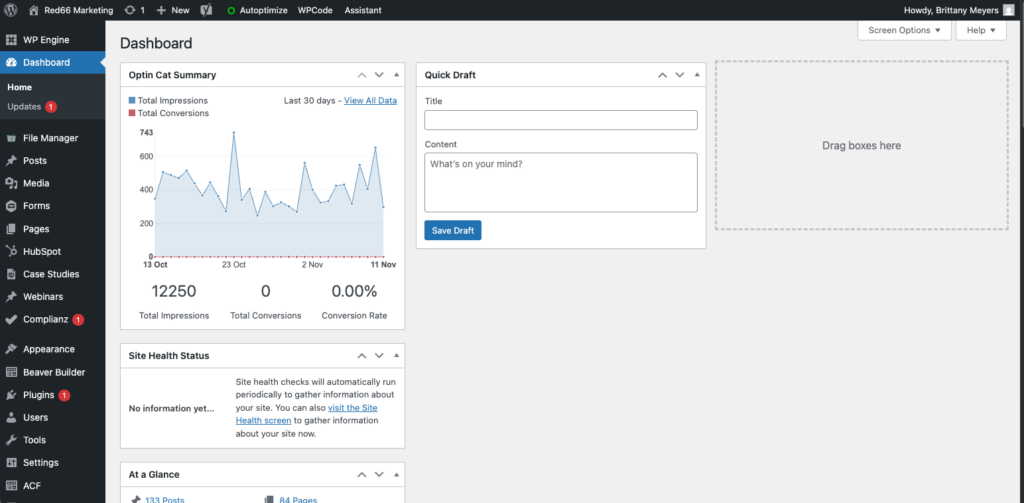
The left-hand menu is where you’ll find most of your editing and site controls.
Think of it like:
- Pages = Main website content (Home, About, Services, Contact, etc.)
- Posts = Blog articles or news updates
- Media = Your images and uploaded files
- Appearance = Layout + design settings (we recommend leaving this to us)
- Settings = Site-wide controls (do not edit unless advised)
Key Sections You’ll Use
1. Pages
This is where you can view and edit your main website pages.
Example:
- Home
- About Us
- Services
- Contact
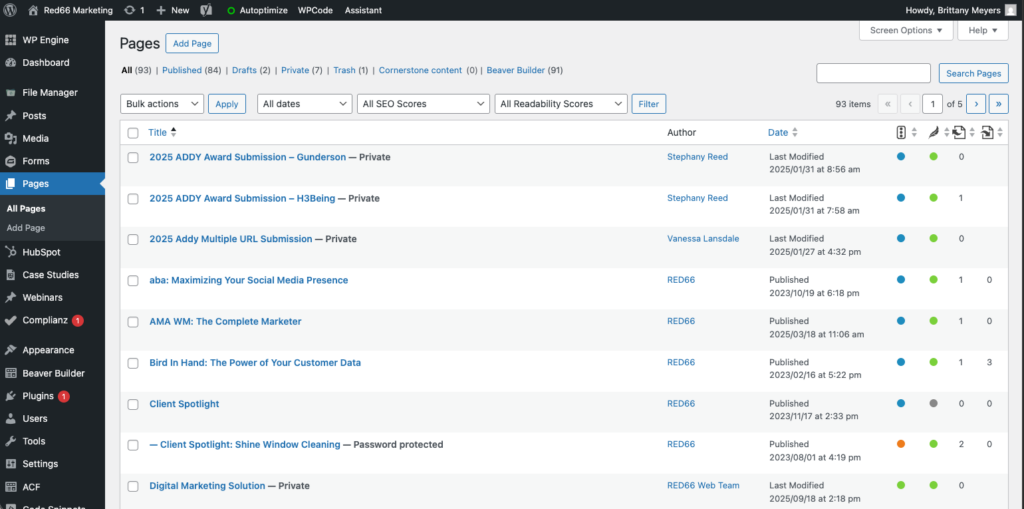
Click a page title to view or edit it.
Note: Most pages on RED66-built sites are edited using a page builder such as Beaver Builder or Elementor. Your Account Manager will tell you which applies.
2. Posts (Blog/News)
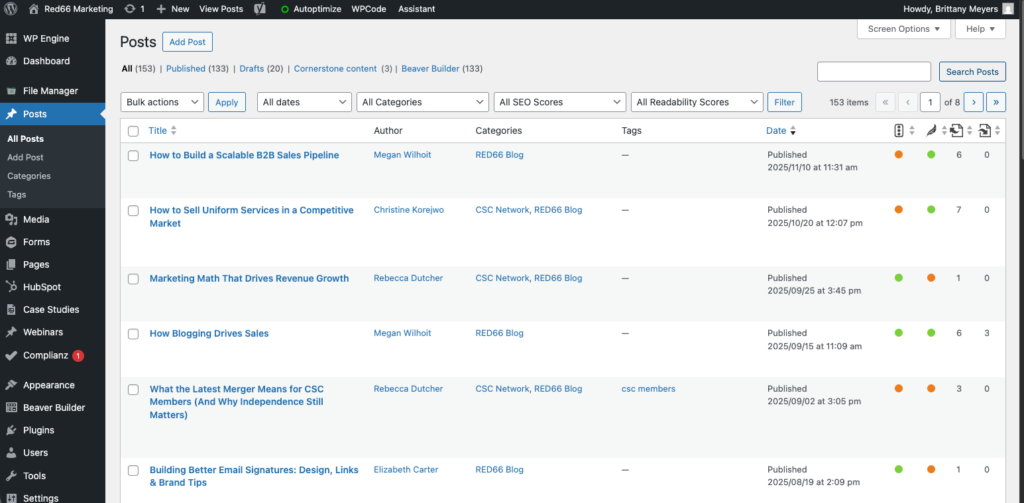
If your website includes a blog, articles are located under Posts.
Here you can:
- Add new articles
- Edit existing posts
- Organize posts using categories
3. Media
The Media Library holds your website’s images and uploaded files.
Here you can:
- Upload new images
- Reuse previously uploaded images
- Check file sizes before adding them to pages
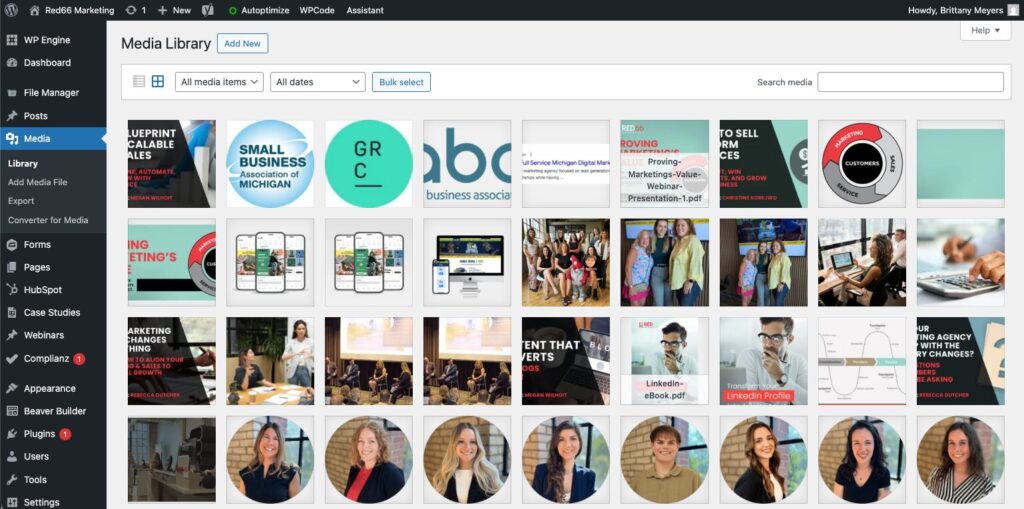
Tip: Upload high-quality but web-optimized images (usually under 1MB) to keep your site loading quickly.
Less Frequently Used Sections (But Good to Know)
Appearance
This controls themes, menus, and widgets.
These affect the whole site and should not be adjusted unless instructed.
Plugins
Plugins add functionality to your site (forms, SEO tools, editors, etc.).
RED66 manages plugin updates and compatibility — please don’t install new plugins or update existing plugins on your own.
Settings
This is where global site settings live. Please do not change these without guidance.
If Your Site Uses a Page Builder
Many RED66 sites use:
- Beaver Builder
- Elementor
Your Account Manager will let you know which one your site uses and provide instructions based on that editor.
If you’re not sure → just ask. We’ll point you in the right direction.
What You Can Safely Do
You can confidently:
✔ Edit existing text
✔ Update images
✔ Add new blog posts
✔ Upload new media
✔ Change headings and paragraphs
✔ Add videos or links
What You Should Avoid Without Checking First
To keep your site stable and secure, avoid:
✖ Installing or deleting plugins
✖ Changing your theme
✖ Editing code or theme files
✖ Deleting full pages unless instructed
✖ Editing SEO settings without guidance
✖ Clicking “Update Plugins” (RED66 handles updates monthly)
Need Help or Want Training?
We’re happy to walk you through editing your site.
Email your Account Manager or contact web@red66marketing.com
We can provide:
- Quick training calls
- Page editing walkthroughs
- Content formatting guidance
- Recommendations for image sizing and layout
Need a visual walkthrough? Check out the how to video below!