
How to Log Into Your Website (WordPress)
Most RED66 client websites are built on WordPress.
To make updates, you’ll log into your website’s WordPress Dashboard.
Step 1: Open Your Website Login Page
In your browser, type your website domain followed by: /wp-admin
Example:
www.yourwebsite.com/wp-admin
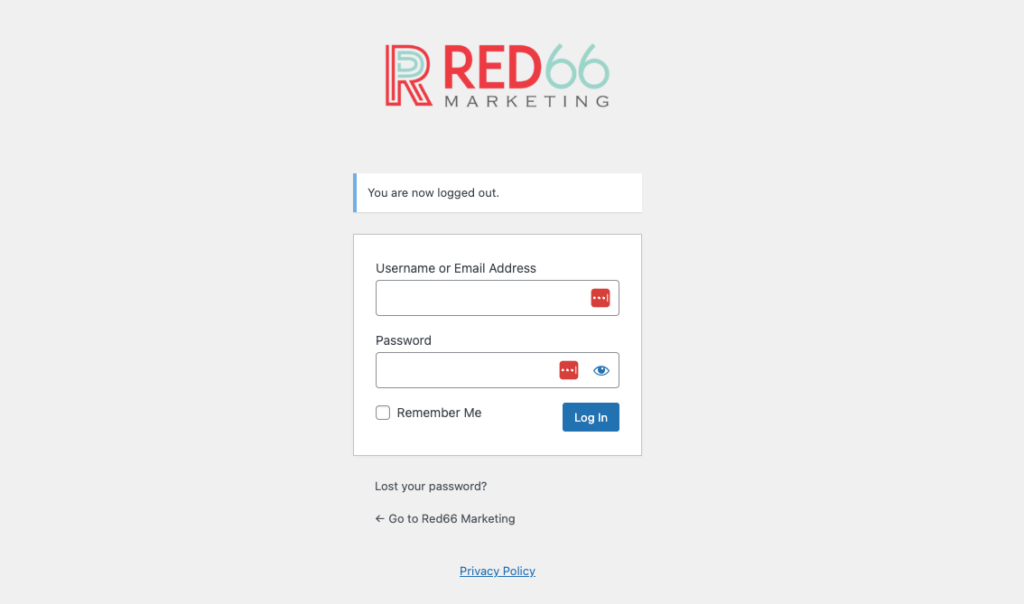
Step 2: Enter Your Login Information
You may already have login credentials if:
- Your team originally built the website, or
- You’ve logged into WordPress before
If so → use your existing username and password.
If your website is new or was just rebuilt by RED66, we provided your login credentials during onboarding.
If RED66 provided your credentials:
Look for an email from your Account Manager with the subject line:
“Your Website Login Access – RED66”
| Field | What to Enter |
| Username / Email | Provided by RED66 or previously created user |
| Password | Provided by RED66 or your existing password |
Step 3: Click “Log In”
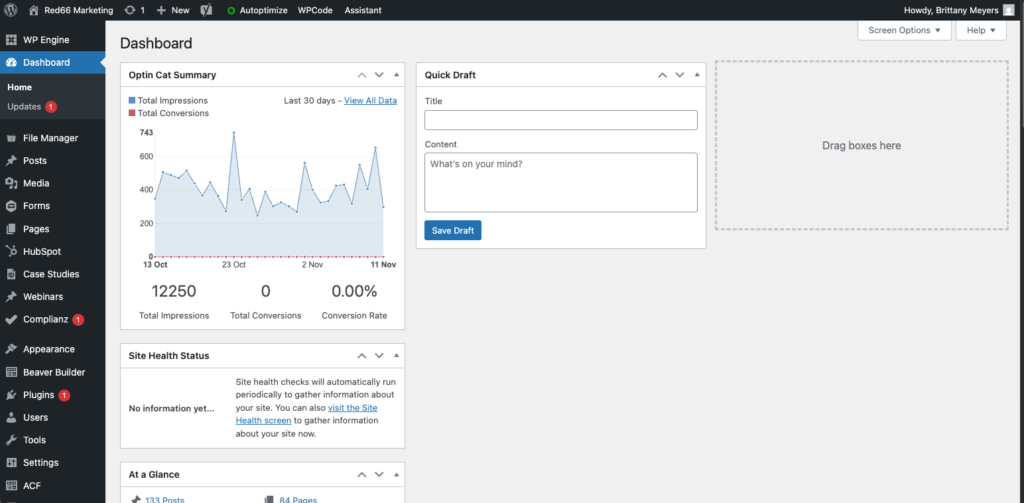
After logging in, you'll land on your WordPress Dashboard — this is the main control center of your website.
If You Don’t Know Your Login
That’s okay — choose the option that applies to you:
Option A — You Used to be able to log in
Try resetting your password:
- Go to the login page
- Click “Lost your password?”
- Enter your email address
- Check your inbox and follow the reset link
Option B — You’ve never logged in, or access is unclear
Email RED66 at:
web@red66marketing.com or your account manager
We will:
- Confirm whether an account exists
- Re-activate or reset your access
- Or create a new login for you
Recommended Browsers
To avoid errors when editing your site, use:
- Google Chrome
- Microsoft Edge
- Safari (Mac)
Avoid:
- Internet Explorer
- Private / Incognito mode (may block login cookies)
Security & Permissions Notes
We recommend that:
- Each team member have their own login
- Passwords are not shared via email
- Users only receive the access level they need (Editor vs. Admin)
If you need to add or remove team members, just contact us — we’ll do it for you to ensure the site remains secure.
Need Help?
We're here to support you.
Email your Account Manager or web@red66marketing.com
We can help with:
- Login troubleshooting
- Creating new user accounts
- Guided training on how to make changes to your site
Need a visual walkthrough? Check out the video below!